Lab 2 - Adding Webex AI Agents to an IVR Flow.
Context
Great work getting to the second lab!  Now that you have created your own Autonomous AI Agent, it's time to take it to the next level by integrating it into an IVR flow.
  With Webex AI Agent, you can revolutionize your customers' journeys—whether digital or voice—by enabling more natural and engaging conversations compared to traditional Q&A bots. Just like in the previous lab, we've made this incredibly simple using the WxCC Flow Designer.
Let's get started!
High Level Explanation 
- Initial setup of your human agent team and queue will be done via API.
- You will create a voice flow from WxCC Flow Designer to route calls to your AI Agent.
- Add a new inbound telephony Channel with a PSTN number.
- Login to Agent Desktop and select the team you created.
- Place a call to talk to your AI Agent and transfer to an agent.
Preconfigured Elements 
We will save some time by setting up your Team and Queue for you, please click the following button to trigger this action:
Confirm your Team and Queue was configured in Control Hub.
Build 
Creating an IVR flow using WxCC Flow Designer.
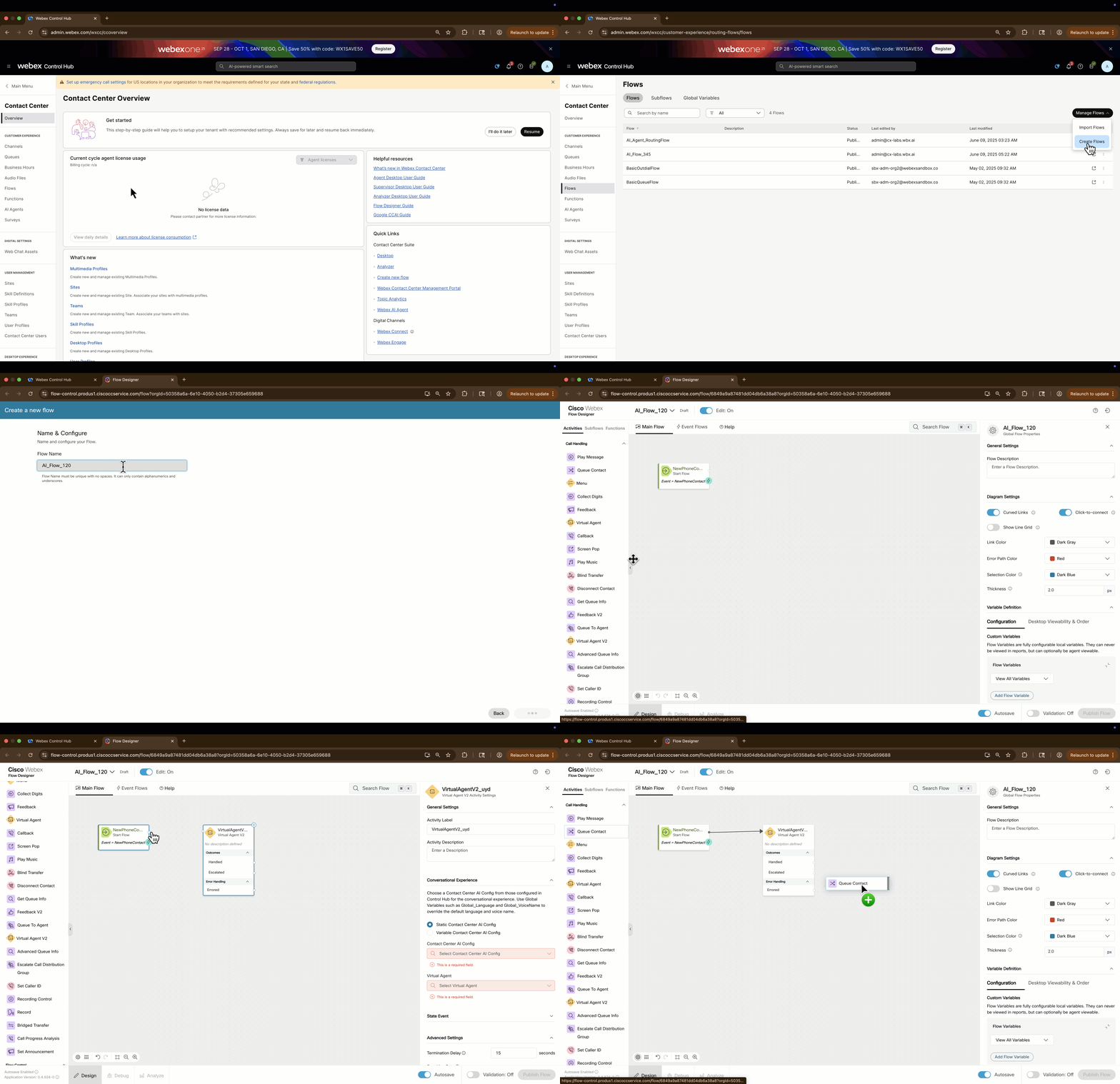
- Navigate to the Flows page from the Customer Experience section in Control Hub.
- Click the "Manage Flows" drop down on the right and select the option "Create Flows".
- You will now see 3 options: Start Fresh, Flow Templates or Import. For the purpose of this lab, we will create our own flow (click Start Fresh), but keep in mind we do provide templates for this type of IVR flow.
- Enter this name for your flow AI_Flow_--- and click the Create Flow button.
- From the Activity Library on the left, drag and drop the Virtual Agent V2 node into the Canvas (gray working space area).
- Click the output connection of the NewPhoneContact and link it to the input connection on your Virtual Agent V2 node.
- Add the Queue Contact node to your canvas. Connect the Escalated output on your node to the input on your Queue Contact node.
- Drag and drop the End Flow node to your canvas. Link the Handled connector from your Virtual Agent V2 node and the Queue Contact output to the input connector of the End Flow node.
- Select the Virtual Agent V2 and configure these settings in the properties pane:
Contact Center AI Config = Webex AI Agent (Autonomous)
Virtual Agent = ---_AutoAgent or Doctor's appointment - ---
- Select the Queue Contact activity and select the queue with name Queue_---.
- We are finished with the configuration, let's enable Validation in the bottom right corner. No errors should come up, now select the option to Publish Flow.
- A new window pops up, don't select any version labels, click Publish Flow.
Configure an Inbound Telephony Channel.
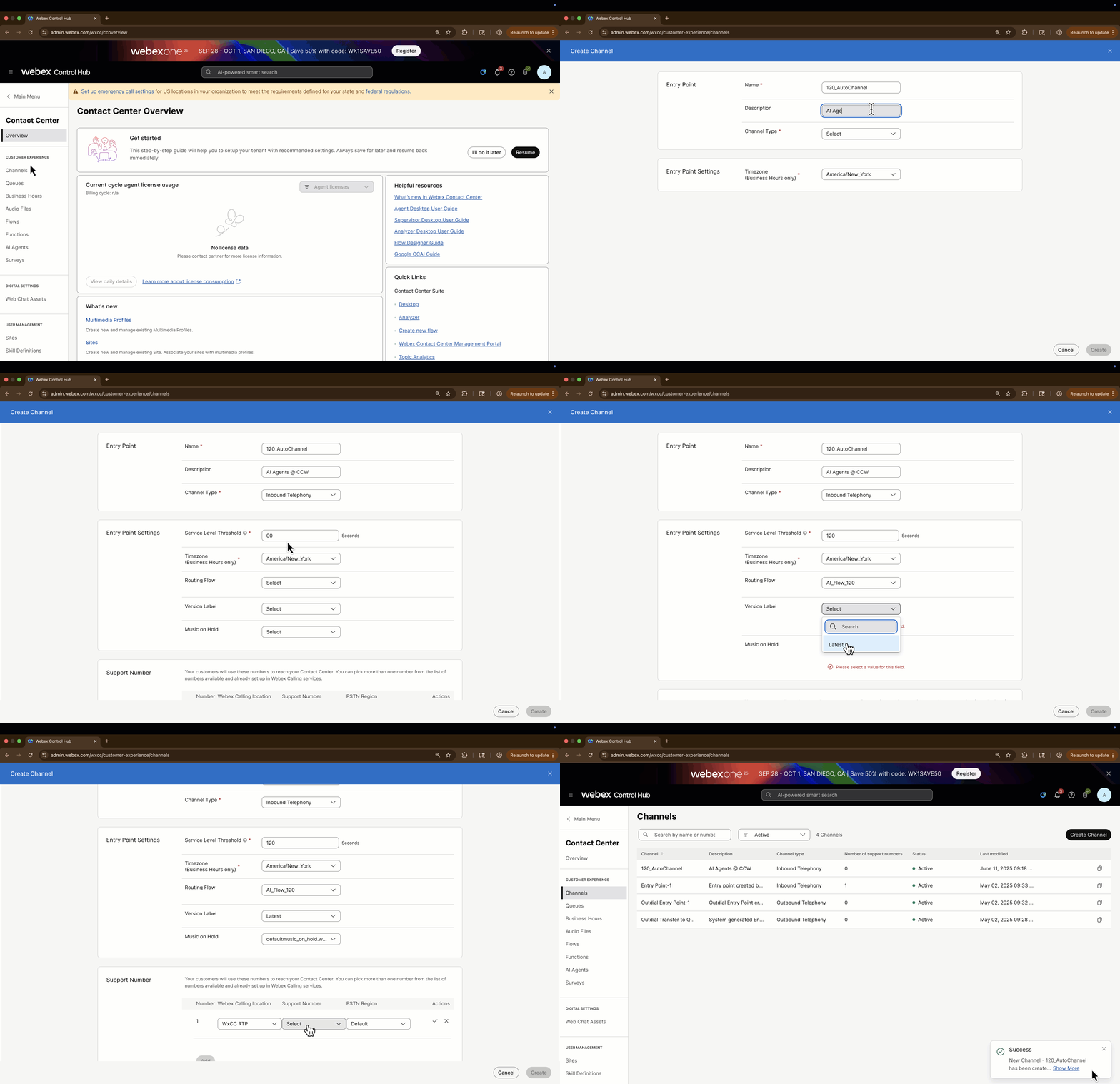
- Navigate to the Channels page from the Customer Experience section in Control Hub.
- Click the option Create Channel. A new window will come up, enter the following details:
Name: ---_AutoChannel Description: AI Agents @ CCW Channel Type: Inbound Telephony Service Level Threshold: 120 Routing Flow: AI_Flow_--- Version Label: Latest Music on Hold: defaultmusic_on_hold.wav
- Select the option to add a support number. Select the location WxCC RTP and choose any number from the list.
- Click the checkbox on the right to confirm the number selection and then select the Create option.
Login to Agent Desktop.
- Open the Chrome profile called WxCC Agent.
- Launch the Agent Desktop and log with the stored credentials.
- In the Station Credentials window, select the Desktop telephony option and team called Team_---
- Set your status to available to receive a call while testing.
Important
Please double check that the correct Team was selected in your Agent Desktop.
You are ready to test your AI Agent over voice.
Testing 
- Call the number you assigned to your inbound telephony channel.
- Your AI Agent should greet you with its welcome message.
- Depending on the type of AI Agent you built in the first lab, ask a couple of relevant questions.
- Request for a transfer to a human agent.
- Answer the call in the Agent Desktop, a notification will pop up to review the summary of your conversation with the AI Agent.
You have finished Lab 2. Congratulations!