Getting Started
Learning Objectives
By the end of this lab, you will be able to:
- Interact with Webex Contact Center (WxCC) APIs using Bruno (or Postman).
- Use APIs from within the WxCC Flow Designer.
- Invoke APIs from a Webex Connect flow using custom nodes.
- Apply APIs to real-world use cases including Campaign Manager, Scheduled Callbacks, Search, and Event Subscriptions.
Lab Duration
This is a 4-hour hands-on lab. Each module builds on the previous one, so please complete them in order.
Disclaimer
The lab design and configuration examples are for instructional purposes. For design-related questions about your production environment, contact your Cisco representative or a Cisco partner.
Lab Access
Use the POD number assigned by your instructor to look up your lab tenant details.
Find Your POD Information
Enter your POD number and the lab passcode provided by your instructor. Use the values shown throughout the lab.
| POD Name | |
|---|---|
| Org ID | |
| Admin User | |
| Agent User | |
| Password | |
| Control Hub | https://admin.webex.com |
| Agent Desktop | https://desktop.wxcc-us1.cisco.com |
| Campaign Manager |
Use Your Assigned POD
Do not use another attendee's POD credentials. The Org ID, users, and Campaign Manager URL are unique to each POD.
Step 1: Download and Import the API Collection
The collection contains all pre-configured API requests you will use during the lab. Bruno is already installed on your lab laptop.
Download the Collection
- Bruno collection (recommended): Download Bruno Collection
- Postman collection (alternative): Download Postman Collection
Bruno vs. Postman
All screenshots, steps, and instructions in this lab guide are written for Bruno. If you choose to use Postman instead, you will need to translate the steps to the Postman interface on your own.
Import the Collection into Bruno
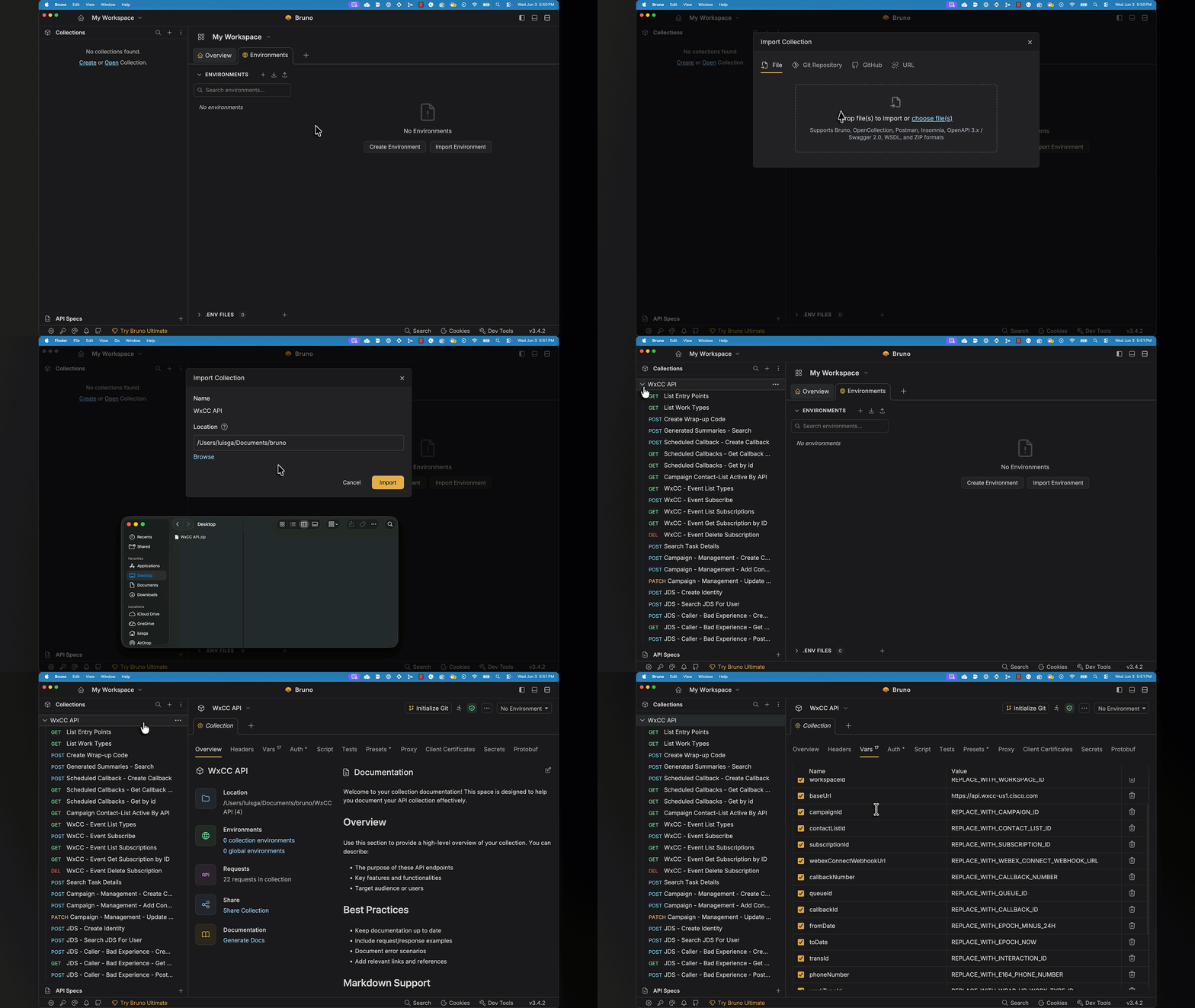
- Open the Bruno application from your lab laptop.
- In the left sidebar, click the + sign next to the Collections section.
- Click the Import Collection button (folder-with-arrow icon).
- In the import dialog, either drag-and-drop the collection or browse to the location where you saved the file and select it.
- Choose a destination folder on the local machine where Bruno will store the collection files.
- Click Import. The
WxCC APIcollection should now appear in your Collections list.
Visual reference
Step 2: Verify Access to developer.webex.com
Several lab modules require API keys generated from the Webex for Developers portal.
- Open a browser and navigate to https://developer.webex.com.
- Click Log In in the top-right corner.
- Sign in using the admin credentials provided for your POD.
- Once logged in, confirm that you can see your name in the top-right corner of the page.
Lab Admin Account
Do not log in with your personal Cisco or Webex account. All API keys must be generated against the lab tenant.
Step 3: Verify Access to the WxCC Tenant
- Open a new browser tab and navigate to https://admin.webex.com.
- Sign in using the admin credentials provided for your POD.
- In the left navigation pane, scroll to Services and click Contact Center.
- Confirm the Contact Center landing page loads without errors.
Step 4: Verify Access to Webex Campaign Manager
- Open a new browser tab and navigate to the Campaign Manager URL provided for your POD.
- Sign in using the admin credentials provided for your POD.
- Confirm the Campaign Manager dashboard loads.
You're Ready!
Once you have completed all the steps above, you are ready to begin Lab 1 - Using Bruno to interact with WxCC.
Use the navigation menu on the left to proceed.